
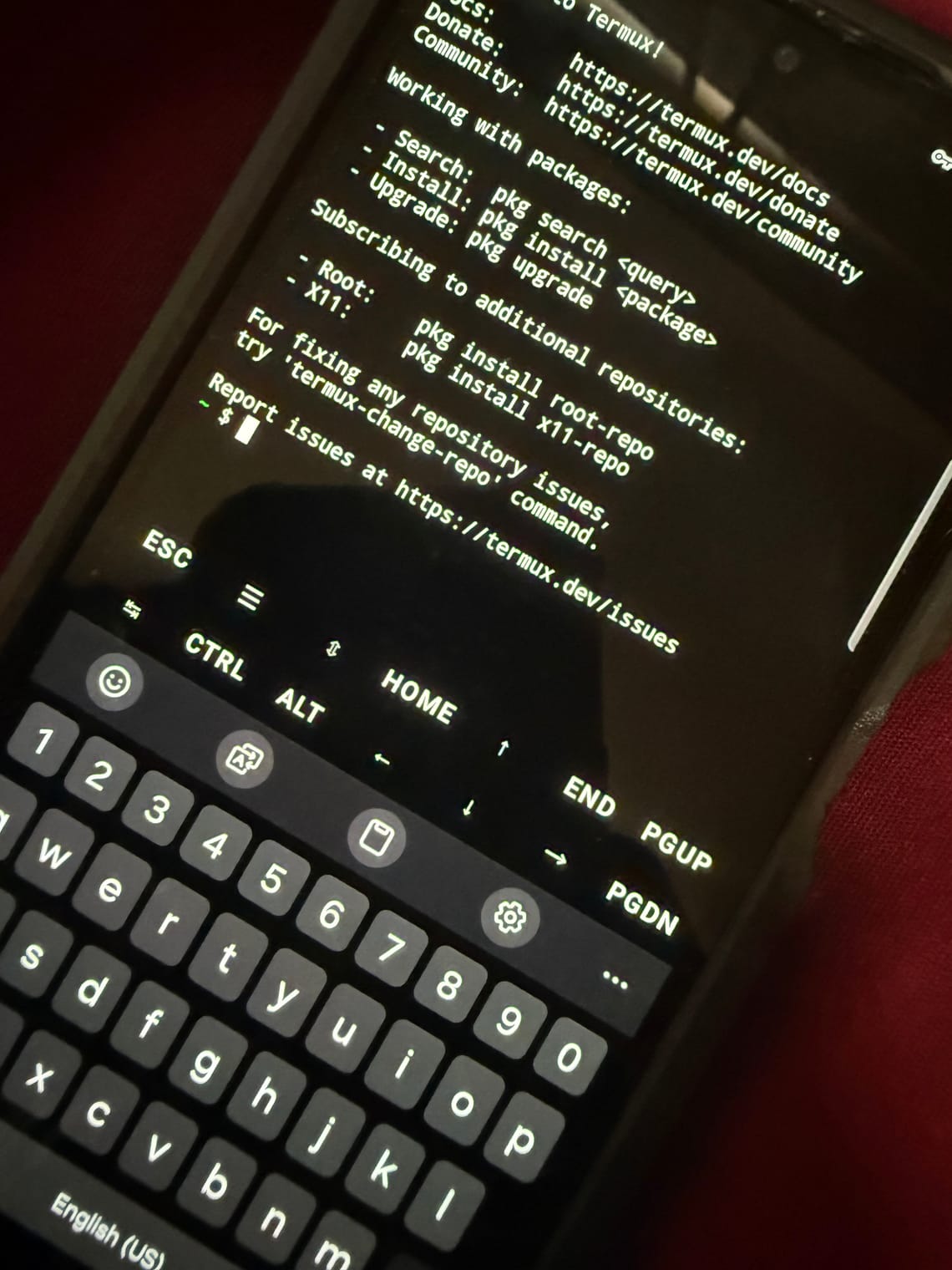
Run Local AI Models on Android with Termux & Ollama
Run large language models fully offline on your phone, with no internet required for complete privacy and zero cloud costs. Chat anywhere—on planes, subways, or remote areas—without lag or dependency on spotty mobile data. Experiment locally with different open-source models (Llama, Mistral, etc.) for free, using your device's own processing power.
Step 1: Install Termux
Head over to F-Droid or Google Play Store to download the Termux app. Termux is an Android terminal emulator and Linux environment app
Step 2: Update Packages
Open Termux and run:
pkg update && pkg upgrade -y
Step 3: Install Ollama
pkg install ollama -y
Step 4: Start Ollama Server
ollama serve
Step 5: Open a New Termux Session
The ollama serve command runs continuously in the foreground. To keep it running while you use other commands, you need to open a new Termux session:
Option A - Split Screen (Recommended):
Swipe from the left edge of Termux to open the navigation drawer, then tap "New session" to open a second terminal window side by side.
Option B - New Window:
If your device supports it, swipe down from the top and tap "New window" to open a separate Termux window.
Option C - Swipe Gesture:
On some Termux versions, simply swipe right from the left edge and select "New session" from the menu.
You should now have two Termux sessions running side by side or in separate windows.
Step 6: Pull a Model
In your new Termux session (the one where ollama serve is NOT running), pull the model:
ollama pull qwen3.5:2b
We'll be using Qwen3.5:2b — a lightweight, efficient model perfect for mobile devices.
Step 7: Verify Installed Models
Once the download completes, confirm the model is saved:
ollama list
Step 8: Start Chatting
Run your model and begin the conversation:
ollama run qwen3.5:2b
Model Information:
Qwen3.5:2b - Size: ~1.6GB - Best for: Fast responses, coding, general chat
Browse all available models at: ollama.com/library
Tips:
· Keep the first Termux session with ollama serve running at all times
· Use split-screen view to see both sessions simultaneously
· Close other apps to free up RAM for better performance
· Models are stored in /data/data/com.termux/files/home/.ollama/models
· To stop ollama serve, press Ctrl+C in that session